
A slow or unreliable Wi-Fi connection can make everyday activities frustrating. Whether you’re streaming movies, attending video meetings, gaming online, or controlling smart home devices, poor wireless coverage can affect productivity and entertainment alike.
The good news is that improving your home Wi-Fi doesn’t always require buying expensive networking equipment. In many cases, a few simple adjustments can dramatically increase speed, coverage, and reliability without costing much.
Here’s how to get better Wi-Fi on a budget.
How to Set up a Home Office with Limited Space?
Start by Testing Your Internet Speed
Before buying new equipment, determine whether the problem is your Wi-Fi or your internet service.
Use reputable speed testing tools to check:
- Download speed
- Upload speed
- Latency (ping)
- Packet loss
Run tests:
- Near the router
- In rooms with poor coverage
- At different times of day
If speeds are consistently low even next to the router, the issue may be your internet plan rather than your Wi-Fi network.
Place Your Router in the Right Location
Router placement has a major impact on wireless performance.
For the best coverage:
- Place it near the center of your home.
- Keep it elevated on a shelf or table.
- Avoid closets and cabinets.
- Keep it away from thick concrete or brick walls.
- Stay clear of large metal objects.
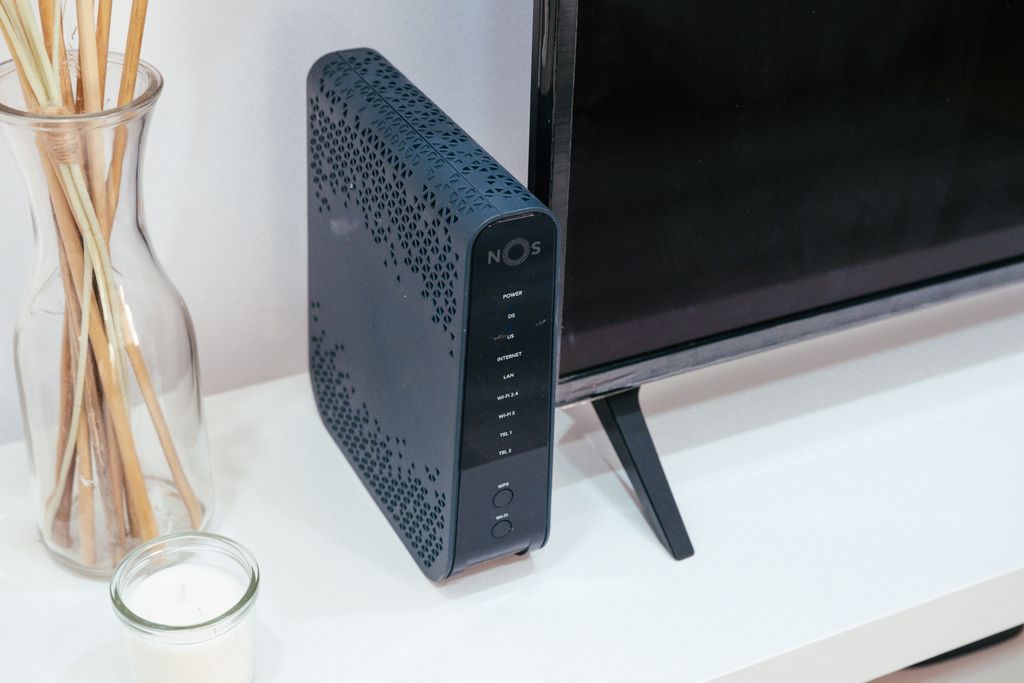
- Avoid placing it behind televisions.
The fewer obstacles between your devices and the router, the stronger the signal.
Keep the Router Away from Interference
Many household devices interfere with Wi-Fi signals.
Common sources include:
- Microwave ovens
- Baby monitors
- Cordless phones
- Bluetooth devices
- Wireless speakers
- Neighboring Wi-Fi networks
Moving your router just a few feet away from these devices can noticeably improve performance.
Restart Your Router Regularly
One of the easiest fixes is simply rebooting the router.
Restarting can:
- Clear temporary memory issues
- Refresh network connections
- Improve stability
- Restore lost performance
Many modern routers allow scheduled automatic reboots during the night.
Update Router Firmware
Router manufacturers regularly release firmware updates.
Updates often improve:
- Security
- Stability
- Wi-Fi performance
- Device compatibility
- Bug fixes
Check your router’s management page or mobile app periodically for updates.
Change Your Wi-Fi Channel
In apartment buildings or crowded neighborhoods, many routers compete on the same wireless channels.
Switching to a less crowded channel can reduce interference.
For:
2.4 GHz
Use only:
- Channel 1
- Channel 6
- Channel 11
These channels overlap the least.
5 GHz
Most routers automatically choose the best channel, but manual adjustments can sometimes improve performance.
Use the 5 GHz or 6 GHz Band
If your router supports dual-band or tri-band Wi-Fi:
2.4 GHz
Pros:
- Longer range
- Better through walls
Cons:
- Slower speeds
- More interference
5 GHz
Pros:
- Faster speeds
- Less congestion
Cons:
- Shorter range
6 GHz (Wi-Fi 6E)
Pros:
- Extremely fast
- Very low interference
Cons:
- Requires compatible devices
- Shorter range
Whenever possible, use 5 GHz or 6 GHz for streaming, gaming, and video conferencing.
Upgrade to Wi-Fi 6
If your router is more than five years old, replacing it may provide a dramatic improvement.
Benefits of Wi-Fi 6 include:
- Faster speeds
- Better efficiency
- Lower latency
- Improved performance with many connected devices
- Better battery life for mobile devices
Entry-level Wi-Fi 6 routers have become much more affordable.
Consider a Mesh Wi-Fi System
Large homes often suffer from dead zones.
Instead of using a traditional range extender, consider a mesh system.
Mesh Wi-Fi provides:
- Seamless roaming
- Better coverage
- Automatic optimization
- Easier management
Budget mesh systems are now available at reasonable prices.
Use a Wi-Fi Extender Carefully
Wi-Fi extenders can improve coverage in some situations.
However:
- They often reduce maximum speeds.
- Placement is critical.
- They work best halfway between the router and the weak signal area.
If possible, choose a dual-band extender.
Connect Important Devices with Ethernet
Not everything needs Wi-Fi.
Whenever practical, use Ethernet cables for:
- Desktop PCs
- Gaming consoles
- Smart TVs
- Network storage
- Streaming devices
Wired connections are faster, more reliable, and reduce Wi-Fi congestion.
Limit Connected Devices
Every connected device shares wireless bandwidth.
Disconnect devices you no longer use, including:
- Old phones
- Smart plugs
- Security cameras
- Tablets
- TVs
- IoT devices
Reducing unnecessary traffic improves performance for active devices.
Enable Quality of Service (QoS)
Many routers include Quality of Service (QoS) settings.
QoS prioritizes important traffic such as:
- Video calls
- Online gaming
- Streaming
- Work applications
This helps prevent downloads from slowing down critical tasks.
Secure Your Wi-Fi Network
Unauthorized users consume bandwidth.
Protect your network by:
- Using WPA3 or WPA2 encryption
- Creating a strong password
- Disabling outdated WPS if unnecessary
- Changing the default administrator password
- Keeping firmware updated
Better security often means better performance as well.
Reduce Background Downloads
Large downloads can monopolize bandwidth.
Examples include:
- Cloud backups
- Game updates
- Operating system updates
- Video uploads
Schedule these activities during off-hours whenever possible.
Replace Old Network Equipment
Sometimes the internet connection is fine, but the hardware isn’t.
Consider replacing:
- Very old routers
- Aging modems
- Faulty Ethernet cables
- Damaged power adapters
Even budget modern routers often outperform premium models from a decade ago.
Check Your Internet Plan
Sometimes Wi-Fi isn’t the problem.
If multiple people regularly:
- Stream 4K video
- Attend video meetings
- Play online games
- Download large files
your internet plan may simply be too slow.
Compare your actual speeds with your ISP’s advertised speeds.
Common Wi-Fi Mistakes
Avoid these frequent problems:
- Hiding the router inside furniture.
- Never updating firmware.
- Using only the 2.4 GHz band.
- Placing the router near microwaves.
- Buying the cheapest extender available.
- Leaving dozens of unused devices connected.
- Ignoring security updates.
Correcting just one or two of these mistakes can noticeably improve your network.
Frequently Asked Questions
Does moving the router really help?
Yes. Proper placement is one of the easiest and most effective ways to improve coverage.
Are Wi-Fi extenders worth it?
They can help eliminate dead zones, but mesh systems usually provide better performance in larger homes.
Is Wi-Fi 6 worth upgrading to?
If your router is several years old or you have many connected devices, Wi-Fi 6 offers worthwhile improvements in speed and efficiency.
Why is my Wi-Fi slow even with fast internet?
Interference, poor router placement, outdated hardware, or too many connected devices may be limiting wireless performance.
How often should I restart my router?
Restarting every few weeks—or scheduling an automatic reboot monthly—can help maintain stable performance.
Final Thoughts
Improving your home Wi-Fi doesn’t always require expensive upgrades. In many cases, simply relocating your router, updating its firmware, changing channels, reducing interference, and optimizing network settings can deliver noticeable improvements. For larger homes or growing smart-home setups, investing in an affordable Wi-Fi 6 router or an entry-level mesh system can provide better coverage and faster speeds without a major expense.
By combining these practical strategies with regular maintenance and good security practices, you can enjoy a faster, more reliable wireless network throughout your home while keeping costs under control.