

In today’s fast-paced world, multitasking has become an essential skill for many people. Whether you are a student, a professional, or a gamer, having a monitor that allows you to efficiently multitask can greatly enhance your productivity and overall experience. However, finding a budget-friendly monitor that meets all your multitasking needs can be a daunting task. To help you in your search, we have compiled a list of the best budget-friendly monitors for multitasking.
UltraWide Monitors: A Wider Perspective
One of the best options for multitasking is an UltraWide monitor. These monitors offer a wider aspect ratio, usually 21:9, which allows you to have multiple windows open side by side without the need for an extra monitor. With an UltraWide monitor, you can have a web browser open on one side, a document on another, and a video playing in the background. This makes it incredibly convenient for tasks that require you to reference multiple sources simultaneously.
One of the top choices in the budget-friendly UltraWide category is the LG 29UM68-P. This monitor features a 29-inch IPS panel with a resolution of 2560×1080 pixels. It has excellent color accuracy and wide viewing angles, making it ideal for both work and entertainment. Additionally, it offers a variety of connectivity options, including HDMI and DisplayPort.
Dual Monitor Setups: Double the Productivity
If an UltraWide monitor is not your cup of tea, another cost-effective option is to go for a dual monitor setup. This involves using two separate monitors side by side, allowing you to have even more screen real estate for multitasking. With a dual monitor setup, you can have one monitor dedicated to your main task, such as writing a report, while using the other monitor for reference materials or communication tools.
One highly recommended budget-friendly dual monitor setup is the Dell P2419H. This monitor features a 24-inch IPS panel with a resolution of 1920×1080 pixels. It has a thin bezel design, making it perfect for multi-monitor setups. The Dell P2419H also offers excellent color accuracy and a wide range of ergonomic adjustments, ensuring a comfortable viewing experience.
Curved Monitors: Immersive Multitasking
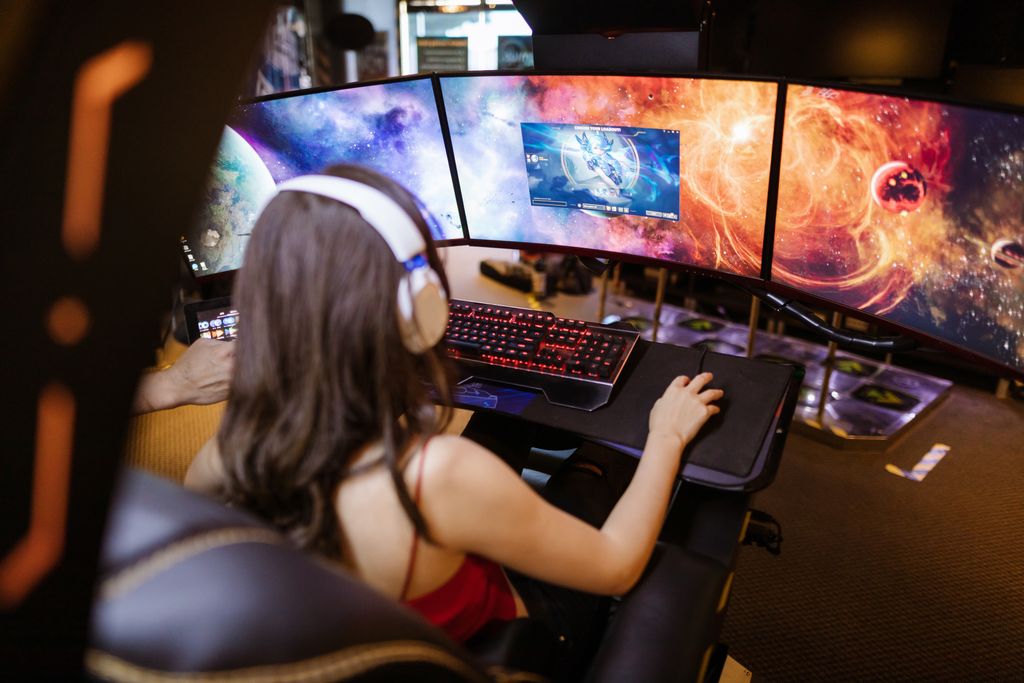
For those who want a more immersive multitasking experience, a curved monitor might be the perfect choice. Curved monitors wrap around your field of view, providing a more natural viewing experience and reducing eye strain. They are particularly useful for tasks that require a lot of visual attention, such as gaming or video editing.
One of the best budget-friendly curved monitors for multitasking is the Samsung C24F390. This monitor features a 24-inch VA panel with a resolution of 1920×1080 pixels. It offers vibrant colors and deep blacks, thanks to its high contrast ratio. The Samsung C24F390 also has a slim profile and a stylish design, making it a visually appealing choice.
What Makes a Monitor Good for Multitasking?
The best multitasking monitor isn’t necessarily the largest or most expensive one.
When comparing models, pay attention to:
- Screen size
- Resolution
- Panel technology
- Refresh rate
- Ergonomic adjustments
- Connectivity
- Color accuracy
A well-balanced monitor often delivers a better productivity experience than one that excels in only a single area.
Choose the Right Screen Size
Different screen sizes suit different workspaces.
General recommendations include:
| Screen Size | Best For |
|---|---|
| 24-inch | Small desks and basic office work |
| 27-inch | Everyday multitasking |
| 32-inch | Multiple windows and creative work |
| 34-inch Ultrawide | Heavy multitasking without dual monitors |
Larger screens make it easier to work with several applications simultaneously.
Resolution Matters
Higher resolution provides more usable workspace.
Common options include:
- Full HD (1920 × 1080) — suitable for basic productivity.
- Quad HD (2560 × 1440) — an excellent balance of sharpness and price.
- 4K (3840 × 2160) — ideal for professionals working with detailed content.
For many users, a 27-inch QHD monitor offers one of the best value combinations.
IPS Panels Are Usually the Best Choice
For office productivity, IPS panels generally provide:
- Better viewing angles
- More accurate colors
- Consistent brightness
- Comfortable long-term viewing
VA panels offer higher contrast, while TN panels prioritize speed, but IPS remains the most versatile option for multitasking.
Ergonomics Improve Productivity
An adjustable monitor stand can significantly improve comfort.
Useful adjustments include:
- Height
- Tilt
- Swivel
- Pivot
Proper positioning reduces neck strain during long work sessions.
USB-C Simplifies Your Workspace
Many modern productivity monitors include USB-C connectivity.
Benefits include:
- Video output
- Data transfer
- Laptop charging
- Fewer cables
- Cleaner desk setup
A single USB-C cable can often replace several separate connections.
Eye Comfort Features Are Worth Considering
People working long hours should look for monitors with:
- Flicker-free technology
- Low blue light modes
- Anti-glare coatings
- Adjustable brightness
These features may reduce eye fatigue during extended workdays.
Dual Monitors vs. Ultrawide
Both setups have advantages.
Dual Monitors
Advantages:
- Flexible positioning
- Lower upgrade cost
- Independent displays
- Easy replacement
Ultrawide Monitor
Advantages:
- No bezel in the center
- Cleaner workspace
- Better window management
- Excellent for spreadsheets and timelines
The best choice depends on available desk space and workflow.
Common Buying Mistakes
Avoid these mistakes:
- Buying based only on screen size.
- Ignoring ergonomic adjustments.
- Choosing a low-resolution display for a large screen.
- Overpaying for gaming features you won’t use.
- Forgetting available desk space.
- Ignoring connectivity options.
Choosing the right specifications often matters more than buying the most expensive monitor.
Final Thoughts
Budget-friendly monitors have improved dramatically in recent years. Today, affordable displays offer excellent image quality, ergonomic features, and connectivity that were once limited to premium models.
Rather than focusing solely on brand names or screen size, consider how you work each day. Screen resolution, panel technology, ergonomics, eye comfort, and connectivity all contribute to a more productive multitasking experience. Selecting a monitor that matches your workflow can improve efficiency while remaining within your budget.
Frequently Asked Questions
What is the best monitor size for multitasking?
For most users, a 27-inch display provides an excellent balance between workspace, comfort, and affordability. Professionals who frequently work with multiple applications may prefer a 32-inch or ultrawide monitor.
Is an ultrawide monitor better than two monitors?
It depends on your workflow. Ultrawide monitors provide a seamless viewing experience, while dual monitors offer greater flexibility and independent screen positioning.
Is 4K necessary for office work?
Not always. Many users find that a QHD (2560 × 1440) monitor delivers excellent sharpness at a lower cost than 4K.
Which panel type is best?
IPS panels are generally recommended for productivity because they offer wide viewing angles, accurate colors, and consistent image quality.
Should I buy a gaming monitor for work?
Only if you also play games. High refresh rates are less important for office productivity than good ergonomics, image quality, and connectivity.